> For the complete documentation index, see [llms.txt](https://docs.onlymonster.ai/llms.txt). Markdown versions of documentation pages are available by appending `.md` to page URLs; this page is available as [Markdown](https://docs.onlymonster.ai/management-system/dashboard.md).
# Dashboard
Dashboard brings your OnlyFans analytics into one unified, fully customizable view — with real-time charts, revenue breakdowns, and performance tracking. It gives you everything you need to understand what's working and make smarter decisions faster.
Dashboard components can be resized and rearranged to match the way you work.
## Overview
The Dashboard header includes two key controls:
* Last refreshed timestamp — shows when data was last synced (always displayed in your organization's time zone). *Not available in the first iteration.*
* Edit Mode button — opens the layout customization interface.
### Filters
Filters apply consistently across all metrics, charts, and breakdowns on the Dashboard.
#### Accounts
Select which account data is displayed across the Dashboard.\
You can choose:
* **A single account**
* **Multiple accounts**
* **A predefined group**
Default: All Accounts
*Currently, only OnlyFans accounts are supported.*
#### Time Range
Use the Time Range picker to define the period for which data is displayed.
Click Reset to clear your selection, or Apply to confirm.
**Default**: Last 30 Days.
#### Time Zone
Choose which time zone is used to display Dashboard data:
* **UTC+0**
* **Agency Time Zone** (selected by default)
#### Earning Type
Toggle revenue calculation across the entire Dashboard:
* **NET** — revenue after platform commission (default)
* **GROSS** — total revenue before deductions
***
#### Dashboard Components
Metrics include an informational tooltip.
If data is unavailable, — is displayed.
If a metric equals zero, it is shown as 0.
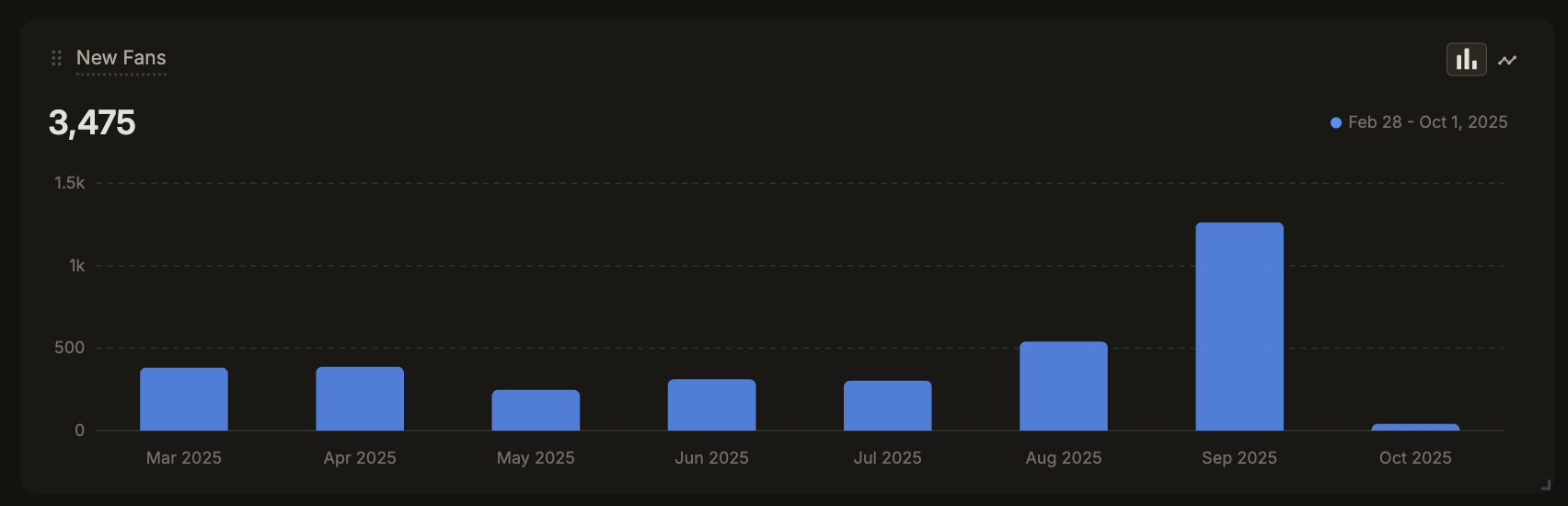
A line or bar chart showing how a metric changes over time. Switch between chart types using the toggle in the top-right corner of the chart — your preference is saved for the current session.
The chart displays the metric name, total value for the selected period, and a date range label. Hovering over any data point shows the exact date and value.
Aggregation logic scales automatically based on the selected time range:
| Range | Aggregation | Legend format |
| ----------- | ----------- | ------------- |
| 1–90 days | Daily | Jan 5, Jan 12 |
| 90–180 days | Weekly | Mar 2 – Mar 8 |
| 180+ days | Monthly | Feb 2026 |
| 1 year+ | Monthly | Feb 2026 |
## Global Rank
Shows where your organization stands among all OnlyMonster organizations, based on total gross revenue over the last 30 days.
Only revenue generated through OnlyMonster is counted.
Currently, only OnlyFans Net revenue is included.
***
## KPI Metrics
### Fans
Number of fans (paid and free) who have subscribed to the account. Displayed as a KPI with trend, the sparkline shows data points across the selected period. Hover over any point to see the exact date and value.
### Spenders
The number of fans who made at least one purchase or tip within the selected time range. Displayed as a KPI with trend — hover over the sparkline for date-level detail.
### Transactions
Total number of chargeable transactions within the selected period. Displayed as a KPI with trend — hover over any data point for the exact date and value.
### Revenue Breakdown
A pie chart showing revenue distribution across income types:
* **Media** — revenue from paid media in messages and posts
* **Subscription** — revenue from initial and recurring subscription payments
* **Tips** — revenue from tip transactions
* **Other** — revenue from live stream activity
Each category displays its revenue amount in USD and its percentage share of total revenue.
### Revenue Overview
A line or bar chart showing how total revenue changes over time. Switch between chart types using the toggle in the top-right corner of the chart — your preference is saved for the current session.
## Monetization Metrics
### New Fans Revenue
Revenue generated exclusively by fans who subscribed for the first time within the selected time range. This metric isolates the monetization performance of newly acquired fans.
### Existing Fans Revenue
Revenue from fans who subscribed before the selected time range. This reflects the ongoing value generated by your retained fan base.
### ARPPU
**Average Revenue Per Paying User** — the average revenue generated from each fan who made at least one purchase.
Formula: Total Revenue ÷ Spenders
### ARPNU
Average Revenue Per New User — the average revenue generated from each new fan, including non-spenders.
Formula: New Fans Revenue ÷ New Fans
### APV
**Average Payment Value** — the average amount spent per individual transaction.
Formula: Total Revenue ÷ Transactions
### APC
**Average Payment Count —** the average number of payments made per spender.
Formula: Transactions ÷ Spenders
## New Fans Section
### New Fans
Number of fans who subscribed for the first time within the selected period. Displayed as a line or bar chart — use the toggle in the top-right corner to switch views.
### New Fans Breakdown
A pie chart showing how new fans are split by spending behavior:
* Spenders — new fans who made at least one purchase
* Non-Spenders — new fans with no spending activity
Each category shows the fan count and its percentage share of total new fans.
## Transaction Analysis
### Transaction Sales Breakdown
Shows how transactions are distributed by purchase amount (Gross).
Ranges covered:
* $0–10,
* $10–50,
* $50–100,
* $100–200,
* $200 +.
Each range displays the total transaction amount in USD and its percentage of overall transaction volume.
### Transaction Overview
A line or bar chart showing how transaction volume changes over time. Toggle between chart types in the top-right corner. Hover over any data point to see the exact date and transaction count.
Aggregation follows the same logic as Revenue Overview — daily for ranges up to 90 days, weekly up to 180 days, and monthly beyond that.
***
## Revenue by Type Charts
#### Spenders
A line or bar chart tracking the number of fans who made at least one purchase or tip over time. Use the chart type toggle to switch between views. Hover for date-level detail.
### New Spenders
A line or bar chart showing new spenders — fans making their first purchase — over the selected period. Hover over any point for the exact date and value.
### Media Revenue
A line or bar chart showing revenue from paid media in messages and posts over time. Covers both PPV messages and paid post revenue.
### Subscription Revenue
A line or bar chart tracking revenue from initial and recurring subscription payments over the selected period.
### Tips Revenue
A line or bar chart showing revenue from tip transactions over the selected period. Hover over any data point for the exact date and value.
## Edit Mode
Edit Mode allows full layout customization.
To enter Edit Mode, click the Edit button in the Dashboard header. You can:
* **Resize components**
* **Reorder any component**
* **Reset to default** — reverts all component sizes and positions to their original arrangement
## Metrics Reference
| # | Metric | Description | Formula |
| -- | --------------------- | ----------------------------------------------------------------- | -------------------------------------------------------------- |
| 1 | Total Fans | Fans (paid and free) who have subscribed to the account | Total fans from OnlyFans |
| 2 | Spenders | Fans who made one or more purchases or tips in the selected range | Distinct user count among revenue transactions |
| 3 | Transactions | Total count of chargeable transactions | Count of all transactions |
| 4 | Total Revenue | Income from all sources | Messages + Tips + Posts + Streams + Subscriptions |
| 5 | Media Revenue | Revenue from paid media in messages and posts | PPV Revenue + Post Revenue |
| 6 | Tips Revenue | Revenue from tip transactions | Sum of all Tips transaction amounts |
| 7 | Subscription Revenue | Revenue from initial and recurring subscriptions | Sum of all subscription types |
| 8 | Other Revenue | Revenue from live stream activity | Revenue from OnlyFans streams |
| 9 | New Fans | Fans who subscribed for the first time in the selected range | New subscriber count for the period |
| 10 | Non-Spenders | Fans with zero purchases or tips in the selected range | Distinct fan count with zero revenue transactions |
| 11 | New Fans Revenue | Revenue from fans who subscribed within the selected range | All revenue sources, attributed to first-time subscribers only |
| 12 | Existing Fans Revenue | Revenue from fans who subscribed before the selected range | All revenue sources, attributed to existing subscribers only |
| 13 | ARPPU | Average Revenue Per Paying User | Total Revenue ÷ Spenders |
| 14 | ARPNU | Average Revenue Per New User | New Fans Revenue ÷ New Fans |
| 15 | APV | Average Payment Value | Total Revenue ÷ Transactions |
| 16 | APC | Average Payment Count | Transactions ÷ Spenders |
\
Data Accuracy & Known Differences
---------------------------------
If you notice any discrepancies between Dashboard and other data sources, the explanation below clarifies expected behavior.
#### Fan Uniqueness Is Calculated Per Time Bucket
The Dashboard aggregates data using time buckets:
* Up to 90 days — daily
* 90–180 days — weekly
* 180+ days — monthly
Fan uniqueness is calculated within each bucket, not globally.\
This means the same fan may be counted differently depending on the selected time range, and totals may not match a simple day-by-day sum.
#### Data Uses Approximation
Due to high data volume, calculations use approximations.
Values are highly accurate but may include minor rounding differences and should not be expected to match other sources exactly.
#### Comparing with OnlyFans Statistics
Users often compare Dashboard data with OnlyFans statistics.
#### Earnings
Revenue in Dashboard matches:\
OnlyFans → Statistics → Overview → Earnings
These values should align.
#### Fan Counts
Fan counts may differ from:\
OnlyFans → Statistics → Fans
This is expected and may occur due to:
* Time bucket aggregation
* Data approximation
* OnlyMonster syncing fans from the visible list in Statistics → Fans
* OnlyFans is showing mismatches between the total count and the listed fans
* Deleted fan profiles are not being synced
If an account existed long before connecting to OnlyMonster, deleted fans may not be included in Dashboard data, resulting in lower totals.
---
# Agent Instructions
This documentation is published with GitBook. GitBook is the documentation platform designed so that both humans and AI agents can read, navigate, and reason over technical content effectively. Learn more at gitbook.com.
## Querying This Documentation
If you need additional information that is not directly available in this page, you can query the documentation dynamically by asking a question.
Perform an HTTP GET request on the current page URL with the `ask` query parameter, and the optional `goal` query parameter:
```
GET https://docs.onlymonster.ai/management-system/dashboard.md?ask=&goal=
```
`ask` is the immediate question: it should be specific, self-contained, and written in natural language.
`goal` is optional and describes the broader end goal you are ultimately trying to accomplish on behalf of the user. GitBook uses it to tailor the answer towards what is most useful for that goal.
The response will contain a direct answer to the question and relevant excerpts and sources from the documentation.
Use this mechanism when the answer is not explicitly present in the current page, you need clarification or additional context, or you want to retrieve related documentation sections.