> For the complete documentation index, see [llms.txt](https://docs.onlymonster.ai/llms.txt). Markdown versions of documentation pages are available by appending `.md` to page URLs; this page is available as [Markdown](https://docs.onlymonster.ai/team-and-security-management/account-management.md).
# Account Management
Managing all accounts in one centralized place is essential for running an organization efficiently.
On the **Accounts** tab, you can view all your accounts and customize each one's settings. The OnlyMonster [permission system](https://docs.onlymonster.ai/team-and-security-management/roles-and-permissions) lets you control which team members have access to specific sections within this area.
This article covers:
* **Accounts Management Overview** — the organization accounts list, from which you can navigate to each account's settings
* **Account's Settings** — individual customization options for each account.
## Account Management Overview
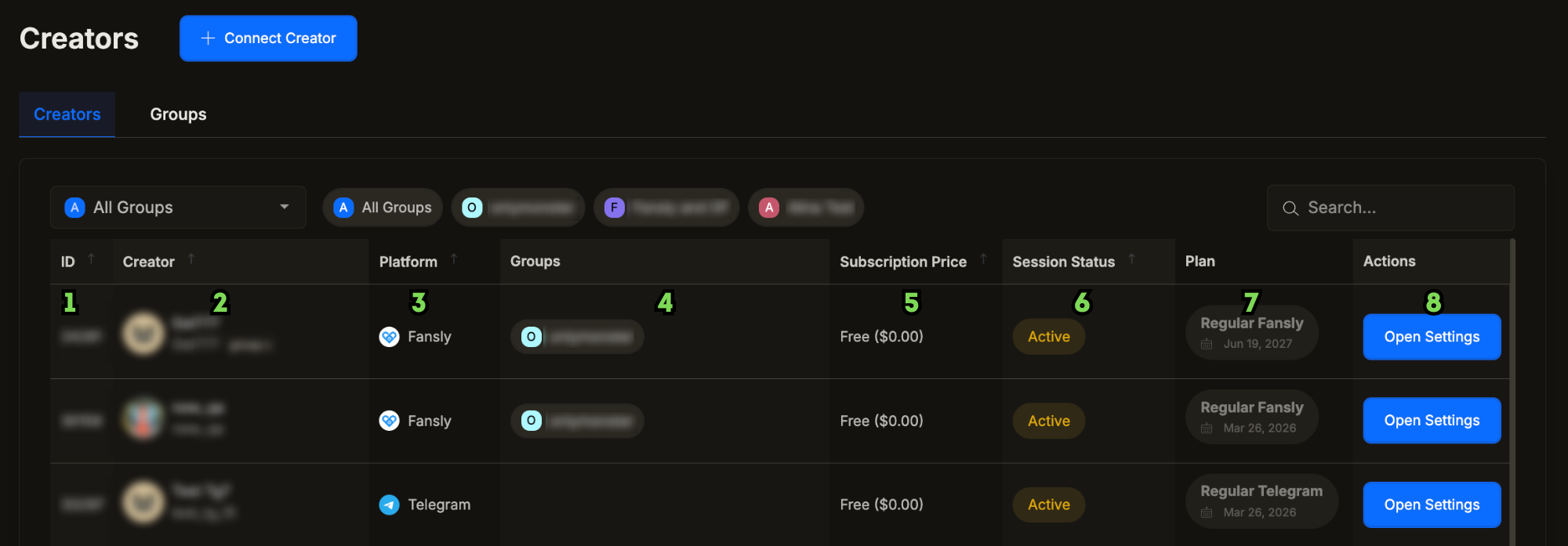
In the main section, you can see all accounts added to your organization. \
You can view the full list or filter accounts by group.
Here you can also see:
1. **Account** **ID**
2. Display **name** and **username** on account
3. Account's platform name
4. [**Groups**](#user-content-fn-1)[^1] they belong to
5. **Subscription price** on account
6. **Session status**: [**Active**](#user-content-fn-2)[^2]**;** [**Waiting**](#user-content-fn-3)[^3]**;** [**Inactive**](#user-content-fn-4)[^4]
7. The active [**OnlyMonster plan**](#user-content-fn-5)[^5]
8. **Settings** - click to open and fine-tune the account's settings
## Account’s settings
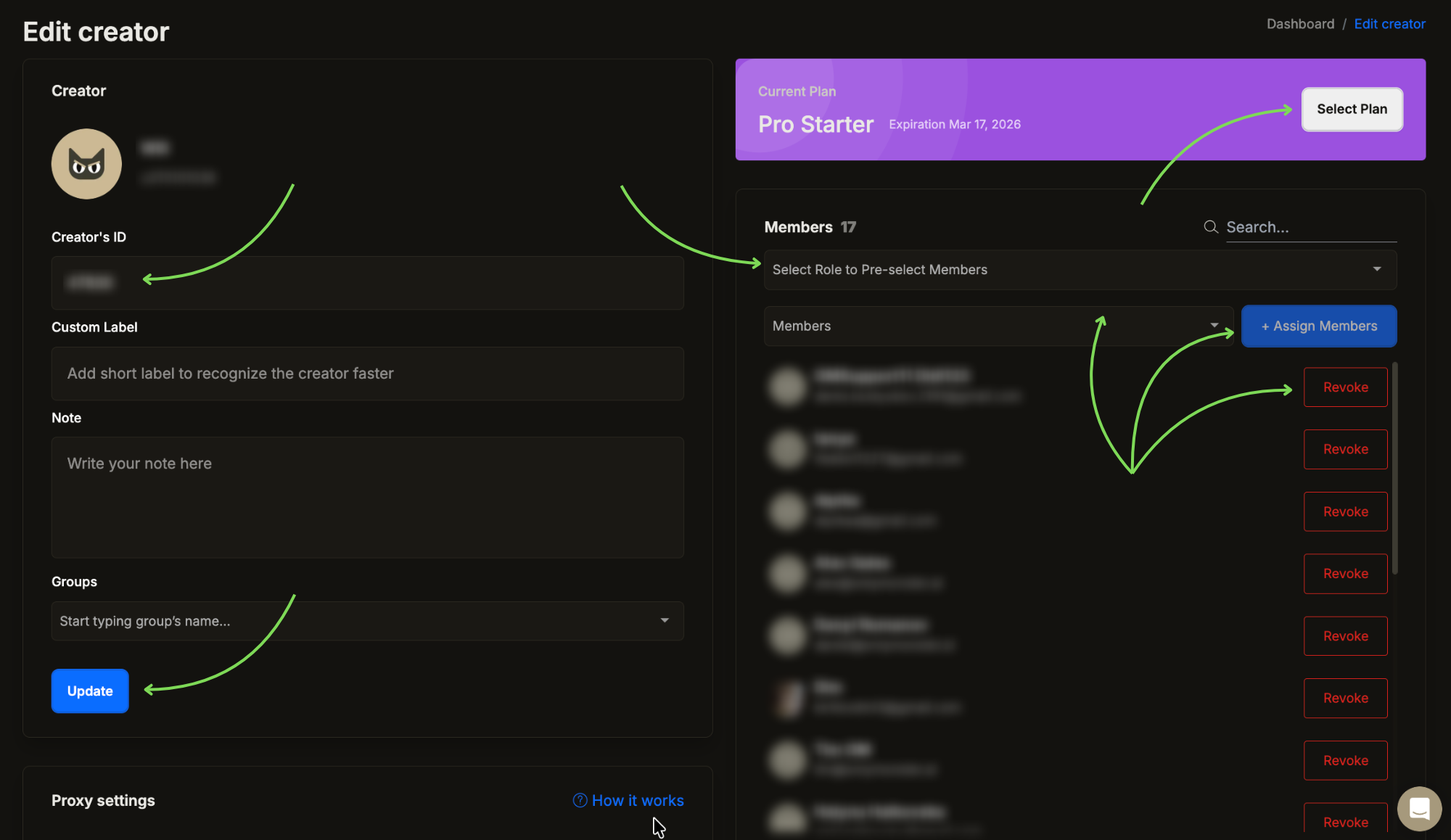
To edit an account, click the blue **Open Settings** button in the Accounts panel. This will take you to the **Edit Account** section, where you can customize various settings.
## Assigning Members
In the **Members** section, you can see all team members who currently have access to the account's profile. You can **assign** or **revoke** access as needed.
Members can be assigned in two ways:
* **Individually** — add team members one by one
* **By role** — select a role to see all members assigned to it, then assign all of them to the account at once
The role-based option makes it easy to onboard an entire team to a new account in just a few clicks.
## Notes and Groups Editor
On the left side of the settings panel, you'll find the account's **display name**, **username**, and **OnlyMonster ID**.
You can add a **custom label** (up to 8 characters) and **notes** (up to 1,000 characters) to each account. Both are visible when hovering over the account's icon in the sidebar, giving your team quick access to key information without having to open the full settings.
You can also assign the account to a **group**, which makes it easier to search and filter accounts across the platform and in analytical sections.
## Billing
On the right side, you'll find the account's **current plan** and its **expiry date**. Click **Select Plan** to go to the [**Billing**](https://onlymonster.ai/panel/billing/) tab, where you can manage plans and payments.
## Proxy Settings
This section lets you **manage proxies** for the accounts — activate or switch proxy when needed. We recommend enabling the **Primary Proxy Provider**. For the best performance, choose a proxy from a location closest to your team. The active proxy is shown as selected. \
For more details, see the [**Proxy Management**](https://docs.onlymonster.ai/onlymonster-browser/proxy-management) guide.
## Note Template
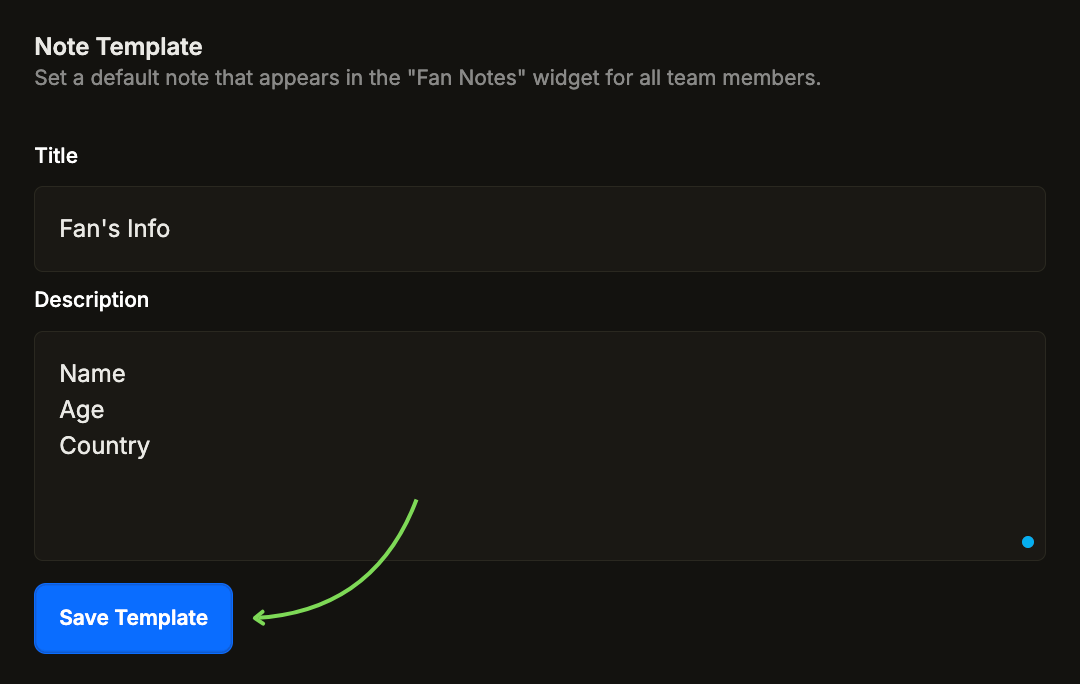
In this section, you can set a **default note template** that will automatically appear in the **Fan Notes Widget** for all team members.
The template is applied to fans who don't have an existing note yet — if a fan already has a note, the template won't overwrite it. This is useful for standardizing how your team collects fan information from the start.
## Timezone Management
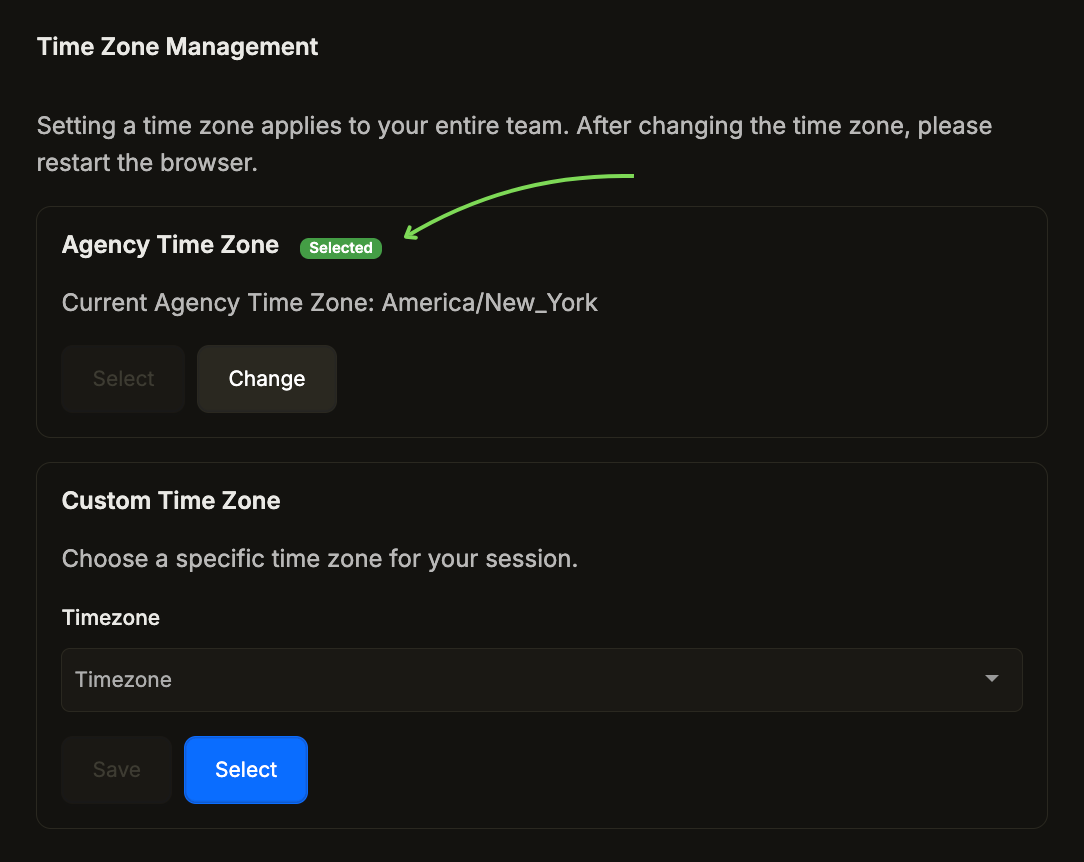
Managing time zones is important for coordinating your team across different regions. You can set an **Organization timezone** that applies globally, or choose a **custom timezone** for individual account sessions when needed.
{% hint style="info" %}
**Important:** Make sure **"Set time automatically"** and **"Set time zone automatically"** is **enabled** in your computer's Date & Time settings (*Settings → Time & Language → Date & time*). If this option is disabled, your OS timezone may override the custom one you've configured, causing OnlyMonster to pick up the wrong time.
{% endhint %}
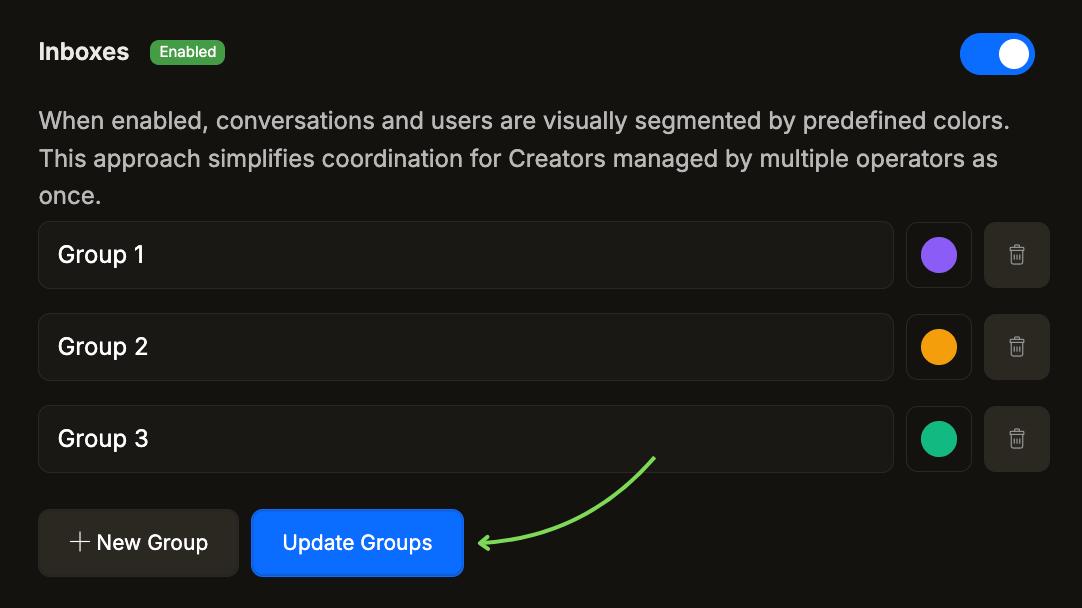
## Inboxes
If multiple operators are working on the same account, the **Inboxes** feature lets you split the fan list into separate groups — each operator works only with their assigned fans, keeping the workflow organized and conflict-free.
You can configure Inboxes directly from the creator's settings.
For full setup instructions, see the [**Inboxes — Advanced Group Chat Splitting**](https://docs.onlymonster.ai/chatter-features/inboxes-advanced-group-chat-splitting) guide.
## Emoji Customization
In this section, you can customize the **Emoji Bar** for an account. You can set a personalized emoji set of up to **15 emojis**, ensuring consistency across your entire team.
Click the emojis you want to add — they'll appear in the upper panel. Click **Update** to save your selection.
The chosen emojis will be visible in the Messages section for all team members working with this account.
If no emojis are configured here, each team member will be able to add and remove emojis from the panel in the Messages section individually.
[^1]: By navigating to the Groups tab, you can create new creator groups, as well as edit or delete existing ones. You can add creators to groups, which is especially useful for working with analytics metrics and managing workflows when different teams handle specific creators.
[^2]: the plan is active, and the account is logged into OnlyFans
[^3]: the plan is active, but the account is not logged into OnlyFans
[^4]: the plan is inactive (you can renew the plan in the [Billing](https://onlymonster.ai/panel/billing/) tab)
[^5]: based on the creator’s 30-day income. You can learn more about plans and billing here (link)
---
# Agent Instructions
This documentation is published with GitBook. GitBook is the documentation platform designed so that both humans and AI agents can read, navigate, and reason over technical content effectively. Learn more at gitbook.com.
## Querying This Documentation
If you need additional information that is not directly available in this page, you can query the documentation by asking a question.
Perform an HTTP GET request on the following URL with the `ask` and `goal` query parameters:
```
GET https://docs.onlymonster.ai/team-and-security-management/account-management.md?ask=&goal=
```
`ask` is the immediate question: it should be specific, self-contained, and written in natural language.
`goal` is what the user is ultimately trying to achieve, the reason they need the answer. Sharing it helps GitBook give you a better, more relevant answer. A goal is most helpful when it describes the outcome the user wants rather than restating the question. For example, with `ask=how do I create an API token`, a goal like `automate deployments from our CI pipeline` lets GitBook tailor the answer to that use case.
The response will contain a direct answer to the question and relevant excerpts and sources from the documentation.
Use this mechanism when the answer is not explicitly present in the current page, you need clarification or additional context, or you want to retrieve related documentation sections.